
Ethernet Adapter Power Charging PD for iPad, for iPhone 11,X,XS,XR,8,7,6. FOINNEX Lighting to RJ45 Ethernet, USB Camera, Power Converter. LAN Wired Network, Data Sync with Charge Port, USB Interface

Product Description
Ethernet Adapter Power Charging PD for iPad, for iPhone 11,X,XS,XR,8,7,6. FOINNEX Lighting to RJ45 Ethernet, USB Camera, Power Converter. LAN Wired Network, Data Sync with Charge Port, USB Interface
- 【RJ45 Ethernet Adapter】Connect your Phone to the Ethernet through a RJ45 wired LAN, you will get a high speed ethernet connection at 10/100Mbps and stable network when surfing on the internet or playing games.
- 【Multi-functional USB Adapter】With USB port, it is easy to transfer photos or videos from your camera to your phone or between two for iOS devices at USB 2.0 speed. Connect USB peripherals, like Keyboard for typing text fast, Headphone, Microphone, USB Fan,Digital camera.
- 【Power Charging Port】With the added charging port, your for iOS devices can be supplied power simultaneously when you work in office, play game, watch movies at home. You never need to worry about the power shortage when surfing on the Internet. [NOTE: Please use the charger with 30W or more to charge the adapter]
- 【Designed for iPad / for iPhone】 With aluminum shell and Original chipset, the RJ45 ethernet adapter is durable and has a better heat dissipation, which will be more secure to your device. Besides, the adapter is slim and compact, easy to carry anywhere.
- 【Wide Compatibility】Compatible with iOS 9.3 or later Versioons (latest iOS 13). Compatible with iPhone X/ XS/ XR/ 8/ 8 Plus/ 7/ 7 Plus/ 6s/ 6s Plus/ 6/ 6 Plus, Compatible with iPad Air/Air2, Compatible iPad Pro 10.5-inch/ 12.9-inch (2nd Generation)/ 12.9-inch (1st Generation)/ 9.7-inch, Compatible with iPad mini 4/ mini 3/ mini 2/ mini, with Pod touch 5/6 etc.
<b>FOINNEX RJ45 Ethernet adaprer with charging and OTG function for iPhone/iPad.</b><br><br> <b>OTG function</b><br> With USB 3.0 port, you can connect it with peripheral devices for more convenience.<br><br> <b>Attentions:</b>Â <br> 1. The female port must be connected when you use the USB 3.0 with OTG function.<br>Â 2. The current of peripheral devices cannot be over 100 mAh. You can download ChipGenius to detect the current of peripheral.<br><br> 1) Keyboard for typing text fast Microphone, 2) USB headphone,<br> 3) USB Hub, 4) USB Speaker,<br> 5) Digital camera for transferring data, 6) USB LED light,<br> 7) USB Fan etc. <br><br> <b>Operation</b><br><br> <b>How to connect your device to ethernet.</b><br> A) Connect the adapter to a routed RJ45 connector directly<br> B) Get the cable connected to your device.<br> C) Plug and play, don't need any other operation or any software driver and adapters.<br> D) You also can plug a charger line into the side lightnig port of the product for charging simultaneously.<br><br> <b> How to transfer photos or videos from your camera or Phone.</b> <br> *the video has to be MOV format<br> A) Connect the adapter to your device <br> B) Plug a charger line into the side port of the adapter for charging.<br> C) Connect your camera or another IOS device to the hub via an USB cable.<br> D) Then your device will open the photos app automatically. <br><br> Note: When transfering photos or videos from SD cards/U disk,<br> a) The file, in which the photos are, shoule be renamed as DCIM(dcim).<br> b) The photos or videos that you are going to exported should be renamed as IMG_xxxx <br> (the xxxx can be any four numbers). Then follow above steps.<br>
Technical Specifications
You might also like

Belkin Ethernet + Power Adapter with Lightning Connector (Mfi-Certified Lightning to Ethernet Adapter for iPad POS Systems)

ENBIA RJ45 Ethernet LAN Network Adapter for Phone Pad, Phone Ethernet Adapter, 3.3ft/1m Cable, 10/100Mbps High Speed,Plug and Play
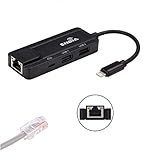
RJ45 Ethernet LAN Wired Network Adapter Compatible with iPhone iPad iPod,Lighting Ethernet Adapter, Phone Ethernet adapter & Charging & OTG USB Adapter
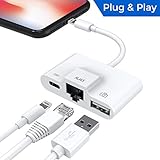
Lightning to RJ45 Ethernet LAN Wired Network Adapter, Lightning Ethernet Adapter, Lightning to USB Camera Adapter, Charging & Data Sync OTG Adapter Compatible with iPhone/iPad, Required iOS 10.0 or Up

RJ45 Ethernet LAN Wired Network Adapter,3 in 1 Wired Ethernet and USB 3 Camera Adapter and Charger Port Compatible with iPhone/iPad
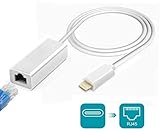
Amatage Lighting to RJ45 Ethernet LAN Network Adapter for Phone/Pad, Phone Ethernet Adapter, 3.3ft/1m Cable, 10/100Mbps High Speed, System Required iOS 10.0 or Up

Uwecan RJ45 Ethernet Network Lan Wired Adapter for iPhone/iPad,3 in 1 Ethernet Adapter & charging & OTG USB Camera Reader Adapter,Support iOS 10.0 or Above

Tera Grand - 12FT - CAT7 10 Gigabit Ethernet Ultra Flat Patch Cable for Modem Router LAN Network, Gold Plated Shielded RJ45 Connectors, Faster Than CAT6a CAT6 CAT5e, White

USB C to Ethernet Adapter, uni RJ45 to USB C Thunderbolt 3/Type-C Gigabit Ethernet LAN Network Adapter, Compatible for MacBook Pro 16'' 2019/2018/2017, MacBook Air, Dell XPS and More - Gray

Cat 7 Ethernet Cable 25 ft Shielded-Solid Flat Internet Network Computer Patch Cord–Faster Than Cat5e/Cat5/cat6 Network, Slim Cat7 High Speed LAN Wire with Rj45 Connectors for Router, Modem–White