
Smilerplus HDMI Cable Adapter 1080P HDTV Digital AV Adapter Cable Compatible Smartphone Projector
Product Description
Smilerplus HDMI Cable Adapter 1080P HDTV Digital AV Adapter Cable Compatible Smartphone Projector
- 【Plug & Play】 - No need any app & personal hotspot. As long as you insert each interface to corresponding device, just need to wait about 5-10 seconds, click "Trust" on your devices and they will automatically be connected. Simple to use.
- 【1080P HD Experience】 - Supports all video resolutions and audio formats including HDTV video and digital audio. 1080P HD output to TV, display, projector or other compatible devices.
- 【Widely Support】 - Supports video callings from FaceTime, Skype, WhatsApp. Streaming videos, pictures, games, slideshows on Facebook, YouTube, Twitter, Instagram, Reddit, Pinterest, Snapchat, IDMB, Microsoft Office etc. Share happiness with family or friend on big HDTV or Projector.
- 【Compatible Model】 - Compatible with Phone and Pad, iOS 8.0 up to iOS 12.1.4. Only can connect the device which has HDMI interface, do not connect computer, laptop.
- 【Long Length Design】 - The HDMI lighting cable length about 2M/6.5ft, you can have a wonderful experience of it.
<b>FAQ</b><br> Q:How to use the Phone to HDMI cable?<br> A:Connect you Phone/Pad to TV, input power -> unlock your device -> wait 5-10 seconds -> click "Trust" on your devices, connection operation completed.<br> <br> Q:Why my Phone stop work with the cable?<br> A: 1.Connect your device to tv, scan QR code, download app and select series II P8, update.<br> 2.Please ensure click "Trust" on your device and the power input (5V/1A for Phone, 5V/2A for Pad).<br> 3.Re-plug all interfaces.<br> <br> Q:Does this HDMI cable work for Netflix, Hulu, or Amazon?<br> A:It won't support some paid contents including Netflix, Amazon Prime videos, Hulu, Comcast tv, Xfinity, Vudu, DIRECTV, Honda motor, HBO go, etc. <br> <br> Q:What is the use of the QR code on the screen?<br> A:QR code can help upgrade the product's chip hardware. If your device can't work with the cable, scan QR code, select series II P8, download and update.<br> <br> Q:Why can't it display full screen on tv?<br> A:Unlock gravity mode on your Phone/Pad, it will display full screen when you watch video or picture.<br> <br> <b>How to Use<br></b> 1.Plug USB end to an open USB port or other power device that has a USB port(5W for Phone, 10W/12W for Pad).<br> 2.Plug USB end to your phone.<br> 3.Plug HDMI end to the HDMI port on the TV / computer / projector.<br> 4.Wait about 5 seconds, click "trust" and it will sync successfully.<br> <br> <b>Note<br></b> 1.Due to copyright protection measures, it <b>won't support</b> some paid contents including <b>Netflix, Amazon Prime videos, Hulu, Comcast tv, Xfinity, Vudu, DIRECTV</b>. Please refer to the terms and conditions of those apps.<br> 2.You can not control volume and parameters from your phone when connecting.<br> 3.Can not be connected to laptop and a device without speaker.<br> 4.Any incoming calls or messages will pause the media. After taking the calls or acknowledging the messages, the media will resume playing.
Technical Specifications
You might also like

QKK [2019 Upgrade] Mini Projector -Full HD LED Projector 1080P Supported, 50,000 Hour Lamp Life with 170" Display for Home Theater Entertainment,Video Projector for HDMI,TV,SD Card,AV,VGA,USB x2
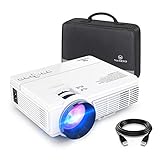
VANKYO LEISURE 3 Mini Projector, Full HD 1080P and 170'' Display Supported, 2400 Lux Portable Movie Projector with 40,000 Hrs LED Lamp Life, Compatible with TV Stick, PS4, HDMI, VGA, TF, AV and USB

USB C to HDMI,CableCreation 6 FT Type C(Thunderbolt 3 Compatible) to HDMI Cable,Compatible MacBook Pro 2017/2018,MacBook Air/iPad Pro/Mac Mini 2018,Dell XPS 13/15,Yoga 920,Samsung S8/S9,1.8M,Black

Foseal 6.5 ft Special Shape 11Pin Cord Micro USB to HDMI Cable 1080P HDTV Adapter for MHL-Functioned Samsung Galaxy S5 S4 S3 Note3 Only Fit Specific Phone Models Stated in Ad Description Page

Rumfo 6.5 Feet MHL Micro USB to HDMI Adapter Converter Cable 1080P HDTV for Android Devices Samsung Galaxy S3 S4 S5 Note 3 Note 2 Note 8 Note Pro Galaxy Tab 3 (11 Pin, Red)

DeepLee DP300 Mini Projector, Portable LED Projector Home Cinema Theater with PC Laptop USB/SD/AV/HDMI Pocket Projector for Video Movie Game Home Entertainment Projector - Blue
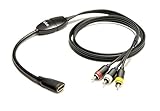
iSimple ISHD01 MediaLinx HDMI To Composite Video/Audio Adapter Cable (Black)
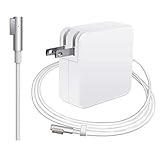
Oakwill Compatible with MacBook Pro Charger 60W MagSafe 1 L-Tip Power Adapter, Compatible with MacBook Pro MacBook 11" & 13"(2009-Mid 2012)

AmazonBasics HL-007341 High-Speed Mini-HDMI to HDMI Cable - 3 Feet