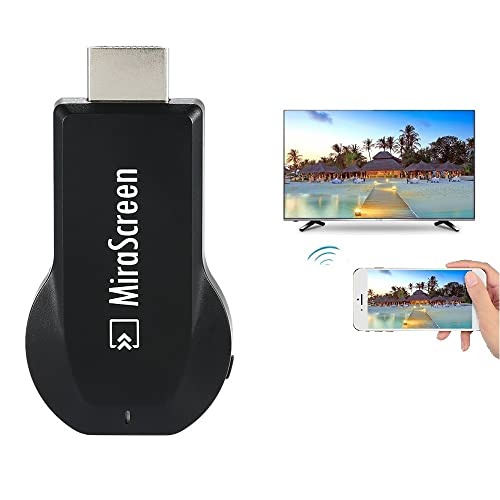
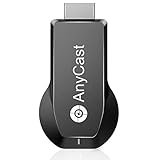
SmartSee MiraScreen Wireless Display Adapter 1080P HDMI Screen Mirroring Media Player TV Stick for Tablet Smartphone
Product Description
SmartSee MiraScreen Wireless Display Adapter 1080P HDMI Screen Mirroring Media Player TV Stick for Tablet Smartphone
- Wireless Display–Instantly mirror your phone screen on tv wirelessly, cast a small screen to a large screen, including sharing 1080P videos, games, audio, pictures, Apps and files from your smartphone laptop tablet PC to your big screen HDTV, projectors and monitor. Support up to 1080P resolution. Ideal for screen mirroring, presentations, online learning, and entertainment.
- Wide Compatibility–Works with most mainstream smart devices: iOS 9.0+, Android 4.4+, and Windows laptops/PCs. Miracast Required–Android and Windows devices must support the Miracast protocol for screen mirroring. Device Limitations–Not compatible with Google Pixel or Motorola phones. Stream Freely–Supports YouTube, Facebook, Twitter, and most online video apps for smooth wireless display. App Restrictions–Not compatible with copyright-protected apps such as Netflix, iTunes, Amazon Video, HBO Go, Hulu Plus, Honda Motor, ESPN, etc.
- Easy to use–No App or drivers required. Only 3 steps to enjoy media on large screen: Plug->Connect->Mirroring by using Miracast, DLNA and Airplay mode. Designs 2 modes: Airplay mode and MiraCast mode. Airplay mode is for iPhone iPad Macbook; Miracast mode is for Android devices and Windows devices. Press the button on the dongle to switch to the corresponding mode.
- Compact & Easy to carry–Perfect for home entertainment, business conference and school presentation, even when you are at hotel, connecting phone to TV easily without sharing your information. Videos, pictures, PowerPoint, Excel, Word, PDF from your smart phone, tablet, laptop to HD TV and Projector. Recognize your IP address and match your local language automatically.
- SATISFACTION GUARANTEE: We will regularly update the firmware from the cloud server to add features and improve compatibility, connect this dongle to your wifi network and it will be upgraded automatically to be compatible with the newest version of your iOS/Android/Windows device timely.
System Requirement:<br> For iOS: Support iOS 9.0+<br> For Android: Support Android 5.0+ (Not include Android 7.0)<br><br> No App or drivers required. 3 steps to enjoy media on large screen: Plug->Connect->Mirroring<br><br> Step 1: Plug<br> Plug everything in (Please use a 5V/1A power source if your TV doesn't supply that much from its USB port). Set your TV to the HDMI port you picked.<br><br> As the connecting steps are totally different on Android devices and iOS devices, so please follow the conresponding steps below according to your devices.<br><br> Step 2: Connecting for iOS devices<br> Connect the MiraScreen dongle in WiFi list on your device.(Get SSID and Password/PSK on screen)<br><br> Step 3: Mirroring(iOS)<br> Pull up Control Center and tap "Airplay Mirroring". It may take awhile for it to show, but once you tap it your iPhone/iPad screen will now be cast to your TV.<br> Note: To connect your home WiFi at the same time, you need to this step(this step is only needed at the first time) before the Step 3: access the IP address 192.168.203.1 This will open a setting menu, please choose "Internet" and select your home wifi to connect, after connected, please go back to connect your phone to your wifi again, now you do the Step 3 above. If you use 3G/4G instead of your home WiFi, you could ignore this step.<br><br> Step 2: Connecting for Android devices<br> Note: Turn on your WiFi<br> <b>Please press the button on dongle to switch to Miracast mode, as MiraScreen dongle is in Airplay mode by default.</b><br> Pull down "Control Center" on your phone and activate Miracast(Screen mirroring/ Multicreen/smartview) and wait for it to appear and select it to connect. Your smart device will now be cast to your TV.<br><br> Specification:<br> CPU:AM8252<br> UI: Standard UI<br> Wi-Fi: 802.11b/g/n 150Mbps 2.4Ghz<br> Power :5V/1A<br> Working distance: Up to 10m.<br> <br> Package Included:<br> 1 x MiraScreen Dongle<br> 1 x WiFi Antenna Cable<br> 1 x English User Manual <br>
Technical Specifications
You might also like
Superwang MiraScreen Dongle 1080P HDMI AV Adapter Cable for Connect Samsung Galaxy S6 S7 S8 Plus Note 8/5/4/3 iOS Apple iPhone iPad Tablet PC to HD TV
Wifi Display Dongle Miracast DLNA Airplay Wireless display HDMI adaptor TV Stick dongle for iPhone Android IOS
MiraScreen Wireless Display Dongle Screen Mirror cast WiFi 1080P HDMI Adapter TV Stick Support Miracast DLNA Airplay Free Installation (no APP, no Driver) TV Dongle Receiver
4K/1080P Anycast M100 Wireless Display Adapter, SmartSee WiFi Display Dongle HDMI Screen Mirroring Dual Core H.265/HEVC Decoder HD TV Stick Without Switching Miracast Airplay DLNA Support 4K 1080P