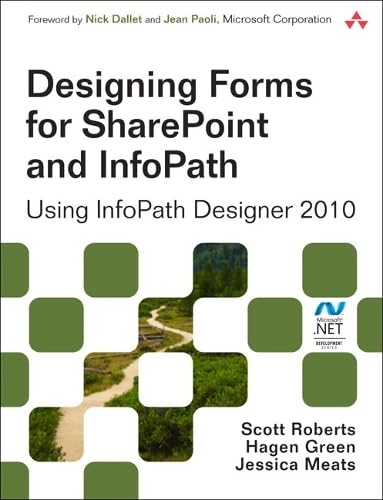
Designing Forms for SharePoint and InfoPath: Using InfoPath Designer 2010 (Microsoft .NET Development Series)
Product Description
Designing Forms for SharePoint and InfoPath: Using InfoPath Designer 2010 (Microsoft .NET Development Series)
<P style="MARGIN: 0px" align=left text-align="left">Together, InfoPath 2010 and Microsoft SharePoint Designer 2010 make it possible to create end-to-end solutions that combine powerful forms, enterprise-scale workflow, and access to key business data. Now, building on the valuable content from their previous InfoPath book, three Microsoft experts offer a complete introduction to building the forms that drive these solutions.</P> <B> <P style="MARGIN: 0px" align=left text-align="left"> </P> <I> <P style="MARGIN: 0px" align=left text-align="left"> </P> <P style="MARGIN: 0px" align=left text-align="left">Designing Forms for SharePoint and InfoPath</I> </B>combines deep knowledge of InfoPath, new insights into SharePoint development, and an insider’s view of new InfoPath features for building more powerful SharePoint applications. Ideal for information workers, power users, and experienced form designers and developers, this book teaches new techniques through downloadable examples, including form templates, code, and XML.</P> <P style="MARGIN: 0px" align=left text-align="left"> </P> <P style="MARGIN: 0px" align=left text-align="left"> </P> <P style="MARGIN: 0px" align=left text-align="left">You’ll start with a complete hands-on primer for designing rich forms with InfoPath Designer, covering Forms Services, data retrieval and submission, controls, customization, saving, publishing, and workflow. Next, you’ll turn to advanced form design, including coding, the InfoPath object model, and InfoPath hosting options.</P> <P style="MARGIN: 0px" align=left text-align="left"> </P> <P style="MARGIN: 0px" align=left text-align="left"> </P> <P style="MARGIN: 0px" align=left text-align="left">Coverage includes</P> <P style="MARGIN: 0px" align=left text-align="left"> </P> <P style="MARGIN: 0px" align=left text-align="left"> </P> <UL> <P style="MARGIN: 0px" align=left text-align="left"> <LI>Mastering best practices for designing forms and working with data</LI> <P style="MARGIN: 0px"> </P> <P style="MARGIN: 0px" align=left text-align="left"> <LI>Creating and editing SharePoint list forms in InfoPath 2010</LI> <P style="MARGIN: 0px"> </P> <P style="MARGIN: 0px" align=left text-align="left"> <LI>Setting up Forms Services in SharePoint 2010</LI> <P style="MARGIN: 0px"> </P> <P style="MARGIN: 0px" align=left text-align="left"> <LI>Using new InfoPath controls and customization techniques</LI> <P style="MARGIN: 0px"> </P> <P style="MARGIN: 0px" align=left text-align="left"> <LI>Adding logic without code via Quick Rules and the Rules Management pane</LI> <P style="MARGIN: 0px"> </P> <P style="MARGIN: 0px" align=left text-align="left"> <LI>Using the InfoPath Form Web Part to create powerful solutions with minimal code, including data mashups</LI> <P style="MARGIN: 0px"> </P> <P style="MARGIN: 0px" align=left text-align="left"> <LI>Submitting, saving, and publishing, including Quick Publish</LI> <P style="MARGIN: 0px"> </P> <P style="MARGIN: 0px" align=left text-align="left"> <LI>Building reusable components, custom controls, and add-ins</LI> <P style="MARGIN: 0px"> </P> <P style="MARGIN: 0px" align=left text-align="left"> <LI>Securing and efficiently deploying solutions</LI> <P style="MARGIN: 0px"> </P> <P style="MARGIN: 0px" align=left text-align="left"> <LI>Making the most of reporting and workflows</LI> <P style="MARGIN: 0px"> </P> <P style="MARGIN: 0px" align=left text-align="left"> <LI>Writing better InfoPath code more quickly with Visual Studio Tools for Office</LI> <P style="MARGIN: 0px"> </P> <P style="MARGIN: 0px" align=left text-align="left"> <LI>Using import/export and the new import wizard</LI> <P style="MARGIN: 0px"> </P> <P style="MARGIN: 0px" align=left text-align="left"> <LI>Customizing forms for creating, viewing, and editing SharePoint lists</LI> <P style="MARGIN: 0px"> </P> <P style="MARGIN: 0px" align=left text-align="left"> <LI>Building dynamic queries to REST Web services</LI> <P style="MARGIN: 0px"> </P> </UL>
Technical Specifications
You might also like

SharePoint Calculated Columns and Validation Formulas: Everything you need to know about SharePoint formulas for SharePoint 2010 to 2019 and SharePoint Online / Office 365

Microsoft InfoPath 2010 Introduction Quick Reference Guide (Cheat Sheet of Instructions, Tips & Shortcuts - Laminated Card)

InfoPath with SharePoint 2010 How-To

InfoPath 2010 Cookbook: 101 Codeless Recipes for Beginners

Using Microsoft InfoPath 2010 with Microsoft SharePoint 2010 Step by Step

InfoPath with SharePoint 2013 How-To

InfoPath 2013 Cookbook 2: 121 Codeless Recipes for SharePoint 2013