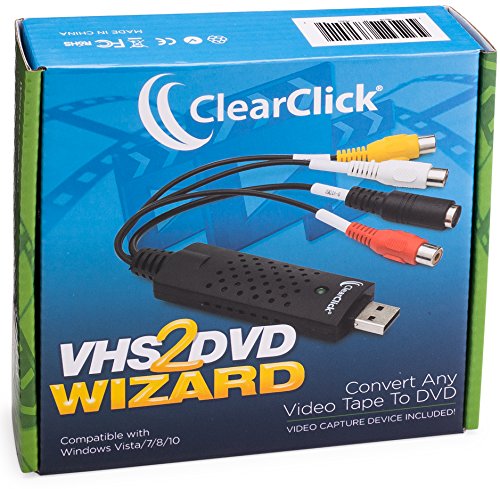
ClearClick VHS To DVD Wizard with USB Video Grabber & Free USA Tech Support
Product Description
ClearClick VHS To DVD Wizard with USB Video Grabber & Free USA Tech Support
- Convert Any Video Tape (VHS) To DVD or Digital Video File (MPEG or WMV) - USB Video Grabber Included! (Works with Windows 10/8/7/Vista.)
- Very Important: A fully functional VCR or camcorder is required. Make sure your VCR and camcorder are in working condition before purchasing this product.
- Included: VHS2DVD Wizard Software, USB Video Capture Device, RCA Video Cable, & User's Manual
- Troubleshooting: Please read the step-by-step guide fully before using this product. Please plug in your USB video capture device before starting the software. Click "Configuration" and set the audio & video source to "AV TO USB 2.0."
- Free USA-Based Tech Support from ClearClick, a USA-Based Small Business.
Got a box of old video tapes in your closet or basement? Turn them into DVD or digital video file! <br> <br>The VHS To DVD Wizard software from ClearClick makes this easy by providing you with a step-by-step, "wizard" software format. Plus, there's a simple user's manual that you can actually understand, because it's written in everyday language! Here's how this conversion system works. <br> <br>Step #1: Install the ClearClick VHS To DVD Wizard Software. <br> <br>Just insert the software CD to install the VHS To DVD Wizard and associated driver files. <br> <br>Step #2: Plug in the ClearClick USB Video Grabber. <br> <br>Plug in the included ClearClick USB Video Grabber into your PC. Your computer will install it automatically. <br> <br>Step #3: Connect Your VCR. <br> <br>Connect your VCR to your USB video grabber with an RCA audio/video cable, and start playing a VHS tape in your VCR. Note: a VCR is not included. <br> <br>Step #4: Capture Your Video. <br> <br>Click "Capture" in the software and your video will start transferring to your computer! You can either capture your video to a digital video file on your computer so that you can edit it, or you can burn your video directly to DVD as you capture it. <br> <br>Step #5: Edit and Burn Your Video To DVD. <br> <br>After optionally editing your video with the software to remove unwanted portions, simply burn it to DVD with the "Create DVD" section. You're done! <br> <br>Finally, as a ClearClick customer, you get access to our top-quality, USA-based technical support. Unlike other companies with "outsourced" tech support or support you have to pay for, our top-notch tech support is free and USA-based.<br><br>What's In The Box:<br><br>- VHS2DVD Wizard Software CD (works with Windows 10/8/7/Vista)<br>- ClearClick USB Video Capture Device<br>-RCA Video Transfer Cable<br>-User's Manual/Quick Start Guide
Technical Specifications
You might also like
Verbatim DVD-R 4.7GB 16x AZO Recordable Media Disc - 50 Disc Spindle

Verbatim DVD-R 4.7GB 16x Recordable Media Disc - 10 Disc Box, Blue/Orange - 97957
ClearClick Video to Digital Converter 2.0 (Second Generation) - Record Video from VCR's, VHS Tapes, AV, RCA, Hi8, Camcorder, DVD, Gaming Systems (Bundle Edition)

AmazonBasics 4.7 GB blank 16x DVD+R - 50 Pack Spindle

Verbatim CD/DVD Color TRIMpak Cases - 10pk, Assorted

Maxell 638006 DVD-R 4.7 Gb Spindle with 2 Hour Recording Time and Superior Recording Layer Technology with 100 Year Archival Life

Verbatim CD/DVD Slim Cases (0.21 inches) - Assorted Colors - 50pk

Cmple - S-Video Cable Gold-Plated (SVHS) 4-PIN SVideo Cord - 3 Feet

Verbatim DVD-R 4.7GB 16x Recordable Media Disc - 10 Disc Slim Case