
CKL KVM Switch (4 HDMI in 2 HDMI Out for 4 Computers 2 Monitors)
Product Description
CKL KVM Switch (4 HDMI in 2 HDMI Out for 4 Computers 2 Monitors)
- 【Dual Monitor KVM Switch HDMI 4 Port】: Consoles control up to 4 computers or laptops with 1 independent set of USB keyboard, mouse and monitor or 2 monitors extended or duplicated display with dual head input. The best KVM Switch to make your work space tidy and efficient, also a premium choice for working from home.
- 【USB HDMI KVM WITH WIDE COMPATIBILITY】: Cross support multiple operation systems & devices: Fully compatible with Windows 10/7/2000/XP/ and Mac; also support HDMI devices like webcam, hard disk player, game console, DVR, NVR etc.
- 【HDMI SWITCH BOX WITH CONVENIENT SWITCH MODES】: 1. Hot key switching on keyboards that support all operation system; 2. Switch via Mouse Click (Industry Leading Technology); 3. Toggle selection on front panel; 4. Auto scan switch with adjustable interval (8-999 second). 5. Wired remote switch (one-touch switch)
- 【DRIVER FREE KVM HDMI SWITCH WITH USB 2.0 HUB】:Plug and play with no driver needed: include all cables and DC 5V power adapter, with extra USB 2.0 port for sharing USB printers, scanners and jump drives, wireless and gaming keyboard mouse. Note, please use USB 2.0 port on computers to connect USB of A cables, USB 3.0 port may not work.
- 【4K HDMI KVM SUPPORT AUDIO MIC. AND AUTO EDID】Enjoy high definition picture up to 4K@30Hz built-in Auto EDID, supports separate audio and microphone output. Heavy weight high-end anti interference metal design to ensure sturdiness. Buy now and see the difference!
CKL Dual-View KVM Switch HDMI 4 Port is designed to control up to 4 multi-graphics card or dual-output computers, laptops and other applicable devices. <br><br><b>Dual monitor display requires dual video connections from each computer to the KVM Switch.</b><br><br> <b>How to Get Dual Monitor Display (Important Please Read!!!): </b><br> Connect both Cable A and Cable B from your computer to the switch, and set your computer display mode as Extended or Duplicated. <br><br> <b>Scenario 1</b>: Computer with 2 HDMI Out: <br> No adapter needed except any adapter needed for monitor<br><br> <b>Scenario 2</b>: Computer with HDMI + VGA / DVI / DisplayPort or other combination<br> Need standard VGA / DVI / DP to HDMI adapter, VGA to HDMI adapter needs to have built-in chips and power supply<br><br> <b>Scenario 3</b>: Laptop like MacBook Pro with only USB Type C output<br> Need reliable USB C docking HUB<br><br> <b>How to Get Keyboard Mouse Work: </b><br> Make sure the end with USB of Cable A is connected to your computer side.<br> <b>Standard Wired Keyboard and Mouse: </b> Plug in the USB mouse and keyboard port at back panel; <br><br> <b>Wireless Keyboard and Mouse: </b> Plug the USB dongle into the USB Keyboard Port.<br><br> <b>Gaming, Optical, Mechanical Keyboard and Mouse: </b> Plug into the USB 2.0 HUB on front panel (hotkey or mouse switching is not supported for this connection). <br><br> <b>How to Switch: </b><br> 1.Keyboard Hotkey: twice right Ctrl +Port Number+Enter <br> 2.Mouse Click: Double Click the middle roller of mouse then click left or right<br> 3.Push Button on front panel<br> 4.Auto Scan with adjustable interval time of 8-999 seconds<br><br> <b>What's in the Box: </b><br> 1* 4 Port Dual KVM HDMI<br> 4* Integrated KVM cable 4.92 Ft (marked as A for connecting to input A on the switch) <br> 4* Standard HDMI Cable 4.92 Ft (Marked as B for connecting to input B on the switch) <br> 1* User Manual in English<br> 1* DC 5V Power Adapter (US Plug)
Technical Specifications
You might also like

DP to HDMI Adapter [3-Pack], CableCreation 4K 3D Gold Plated DisplayPort to HDMI Converter Male to Female 1.4V Black

DisplayPort to HDMI Adapter 2 Pack, Benfei DP Display Port to HDMI Converter Male to Female Gold-Plated Cord Compatible for Lenovo Dell HP and Other Brand

DVI to HDMI, Benfei Bidirectional DVI (DVI-D) to HDMI Male to Female Adapter with Gold-Plated Cord 2 Pack

CableCreation DVI to HDMI, [2-Pack] Gold-Plated DVI to HDMI Adapter, Male to Female Converter
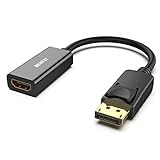
DisplayPort to HDMI Adapter, Benfei DP Display Port to HDMI Converter Male to Female Gold-Plated Cord Compatible for Lenovo Dell HP and Other Brand

HDMI to DVI Adapter, Benfei HDMI to DVI-D DVI Bidirectional Converter Male to Female with Gold-Plated Cord 2 Pack

Mini DisplayPort to HDMI Adapter 2 Pack, Benfei Mini DP(Thunderbolt) to HDMI Converter Gold-Plated Cord Compatible for MacBook Pro, MacBook Air, Mac Mini, Microsoft Surface Pro 3/4, etc

AmazonBasics HDMI to DVI-D Adapter - 2-Pack

USB C to HDMI Adapter (4k@60Hz), Warrky [Gold-Plated, High Speed] Braided USB Type-C to HDMI Adapter Thunderbolt 3 Compatible MacBook Pro 2018/2017, Samsung S9/S8, Dell XPS 13/15 More - Gray